The best AI code editor depends on whether AI lives inside your editor or in the terminal. Developers using terminal-based AI agents like Claude Code need a fast, lightweight editor for file browsing and code review, not a feature-heavy AI IDE. After migrating through Cursor, VS Code, and Nova, Zed paired with Claude Code in the terminal delivers the fastest, most stable workflow. Built on Rust, Zed eliminates the Electron performance issues that plague VS Code and Cursor while providing everything an AI-assisted developer actually needs.
I've used four different code editors in the past year. Not because I'm indecisive, but because AI coding changed what I need from an editor.
Every "best AI code editor" article I've read assumes you want AI built into your IDE. More features, deeper integration, smarter autocomplete. But what if the opposite is true? What if the best setup is the one with the least editor-level AI, paired with the most powerful terminal-based agent?
That's the conclusion I landed on after migrating from Cursor to VS Code to Nova to Zed. Each switch stripped away features I thought I needed. And each time, I got faster. I run multiple codebases daily with Claude Code as my primary coding interface, and the editor I've settled on is the one that stays out of the way.
Here's the full journey.
How AI Coding Changed What I Need From an Editor
The old model of development puts the IDE at the center of everything. Editing, debugging, AI assistance, version control, terminal access. Your editor is your operating system for code. Most developers still choose their AI code editor based on this model.
But when you start using a terminal-based AI agent like Claude Code, the center of gravity shifts. The AI agent does the heavy lifting. It reads your files, writes code, runs tests, manages git, and orchestrates changes across your entire codebase. All from the terminal.
Your editor becomes a viewer. You need it for three things: seeing the file tree so you can monitor the codebase structure, reading code with syntax highlighting, and occasionally making small manual edits. That's it. The best AI code editor, in this context, is the one that does those three things fastest without getting in the way.
Once I realized this, I started evaluating editors differently. I stopped asking "which AI code editor has the best AI features?" and started asking "which editor is the fastest, lightest, and most stable for browsing code while Claude does the real work?"
As one analysis put it, "developers didn't switch to terminals because they prefer typing, but because IDE-based tools are for suggestion while CLI agents are for delegation." That distinction changes everything about how you choose an AI code editor.
Starting With Cursor: The Gateway Drug
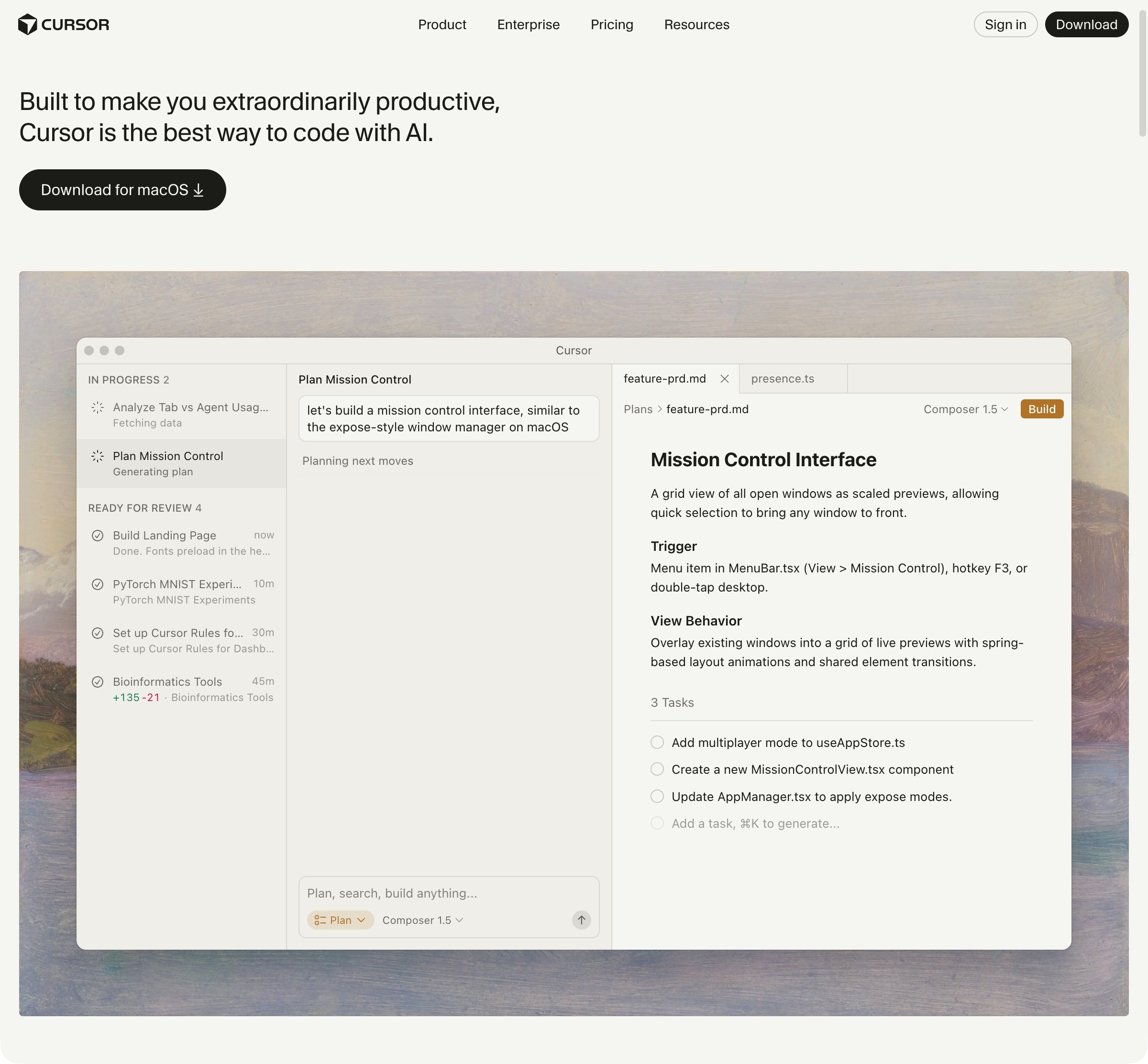
Cursor got me into AI-assisted coding and I'm grateful for that. It's a VS Code fork rebuilt around AI, and for developers who want an AI code editor with everything built in, it's a good product.
The problem started when I discovered Claude Code. Once you run a powerful AI agent in the terminal, Cursor's built-in AI features go from helpful to redundant. I found myself ignoring Cursor's AI chat, its inline suggestions, and its refactoring tools because Claude Code was handling all of that better from the command line.
But the AI features don't just sit there quietly. They get in the way.
The biggest issue is keyboard shortcuts. Cursor remaps keys like Cmd+K, which no longer clears the terminal the way it does in standard VS Code. Multiple review sources confirm that Cursor "hijacks familiar keyboard shortcuts" and enforces its own AI-centric interface. If you're a keyboard shortcut power user, this is a constant battle. You're fighting an AI-optimized interface for an AI you're not even using.
There's also the cost. Cursor Pro runs $20 per month, and developers have reported that token-based pricing can push the actual cost higher with heavy use, leading to what reviewers call "token anxiety." I was paying $20 per month for an AI code editor whose AI features I'd stopped using, while dealing with shortcut conflicts every day.
According to the 2025 StackOverflow Developer Survey, about 18% of developers have tried Cursor. That's significant adoption. But the survey also shows that VS Code still holds 75.9% market share, suggesting many Cursor users sample it without fully committing. For developers looking for the best IDE for AI coding, Cursor is the obvious starting point. But it's not where I ended up.
Moving to VS Code: Familiar But Flawed
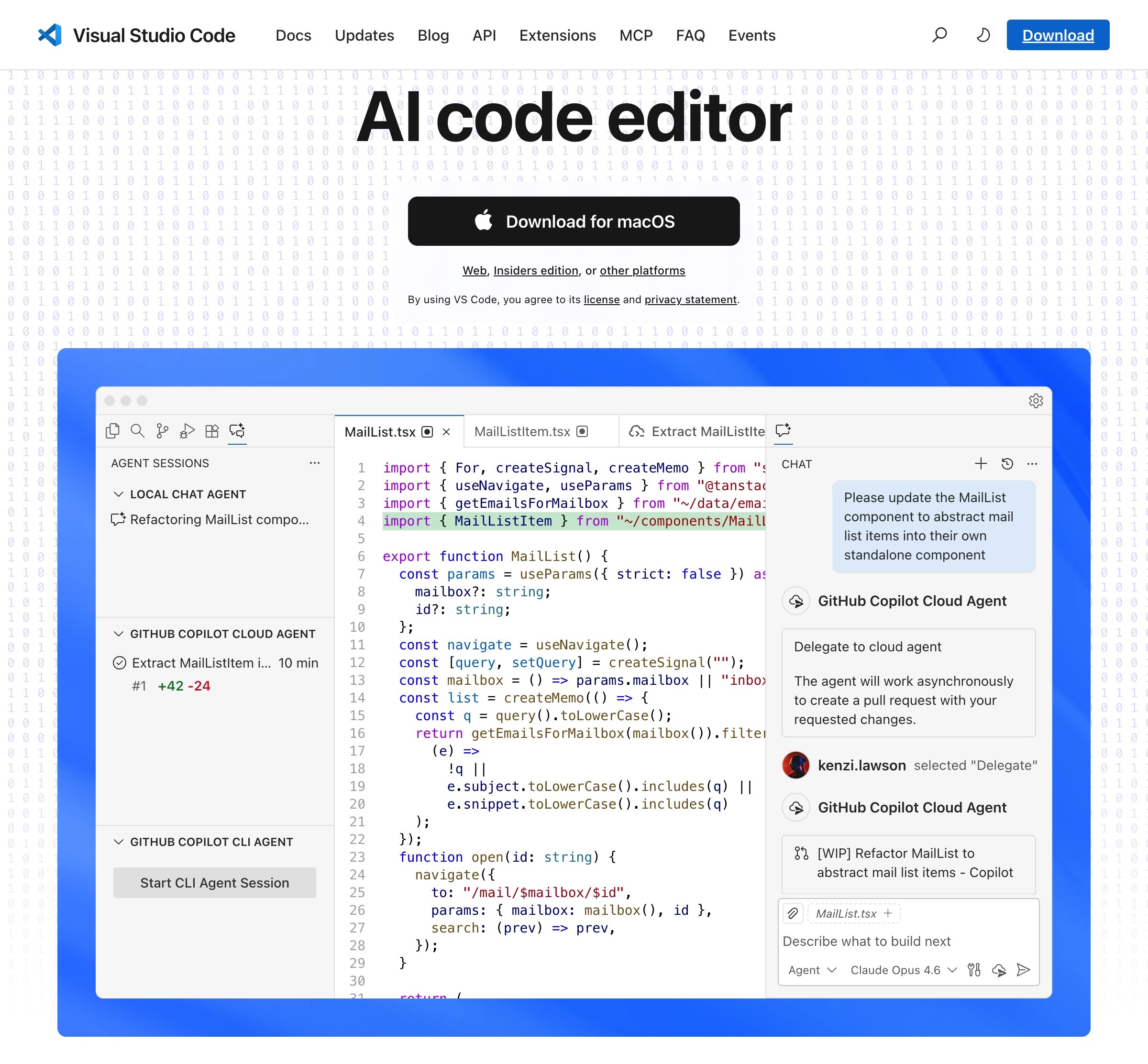
The natural next step was VS Code. Cursor is built on it, so the transition was seamless. Same interface, same git tree, same extension ecosystem. Just without the AI clutter. As a general-purpose AI code editor, VS Code is the default for good reason.
I ran Claude Code in the integrated terminal. No extension needed. Just open a terminal panel and type claude. This worked well for a while. VS Code is a solid editor. It's free, it's well-maintained, and if you're coming from Cursor, you already know every corner of it.
But two problems became impossible to ignore.
The Terminal Scrolling Problem
Claude Code is heavy on terminal output. It streams diffs, file reads, tool calls, and reasoning text constantly during complex operations. A few months ago, VS Code's terminal had a bug where it would scroll uncontrollably during long Claude sessions. The terminal would just scroll and scroll until Claude finished its operation. Then you could scroll back up to see what happened. It was genuinely dizzying, and it made the development experience miserable during extended sessions.
Want to Hear From Me Weekly?
I'm putting together a weekly email with the real stuff. What's working, what's not, and the tools I'm actually using to grow. Not live yet, but you can grab a spot. Totally free!
The Electron Problem Nobody Talks About
Here's the issue that no best AI code editor article mentions: VS Code is built on Electron.
Electron bundles Chromium (the Chrome browser engine) and Node.js into every application. It creates multiple processes per window, loads all of Chrome's subsystems, and makes each app consume significant resources. One analysis notes that "VS Code with a few extensions running can easily use gigabytes" of RAM.
The numbers are stark. In benchmark tests, VS Code used approximately 1.2 GB of RAM for a project that Zed handled with 200 MB. A user reported that a lengthy AI chat session caused VS Code to hit 2.2 GB of RAM and freeze the UI for 10 to 20 seconds at a time. The official VS Code issue tracker has documented reports of "high CPU usage and poor performance using the integrated terminal."
Running multiple Claude Code terminals inside VS Code made the problem acute. The application would overload and crash. This isn't unique to VS Code. I had the same experience with ChatGPT's desktop app, which also runs on Electron. I ended up using the ChatGPT web app to avoid crashes.
When your primary coding tool is an AI agent running in the terminal, and that terminal lives inside an Electron-based editor, you're running a resource-heavy AI process inside a resource-heavy application framework. Something had to give. Any AI code editor built on Electron will hit this wall eventually.
A Brief Stop at Nova
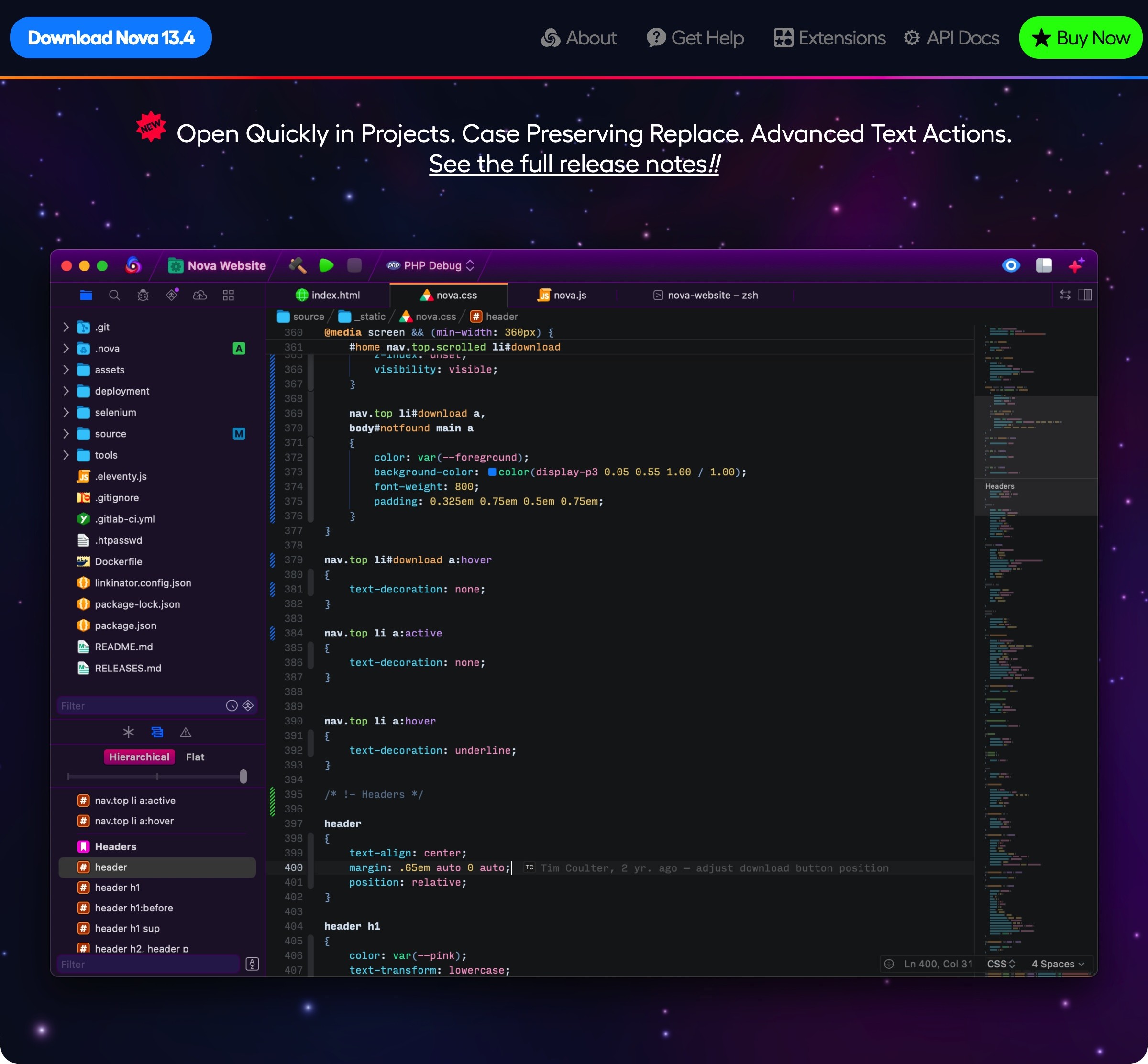
I started looking for non-Electron alternatives. If the best AI code editor couldn't be Electron-based, what were my options? That's how I found Nova by Panic. It's a Mac-native code editor with a 30-day free trial and a $99 license fee ($49 per year for continued updates).
I used it for the entire trial. The native macOS performance was noticeably better than Electron-based editors. It has a built-in terminal, file browser, and a clean interface.
But two things stopped me from buying the license. First, I couldn't change the text size of the sidebar elements. On a large monitor with high resolution, the code editor text was fine, but all surrounding UI elements were tiny. I couldn't find any setting to fix this. Second, the development pace felt slow when I was using it. It felt like only one or two people were working on it. Maybe I'm wrong, but the community felt tiny and the extension ecosystem was minimal compared to VS Code or Zed.
A Reddit thread in the r/PanicNova community echoed that impression: developers expressed frustration that promised features and AI support "never came." When my trial ended, I decided the $99 wasn't justified. I needed something that felt more actively maintained and more aligned with AI-first workflows. The search for the best IDE for AI coding continued.
Why Zed Is the Best AI Code Editor
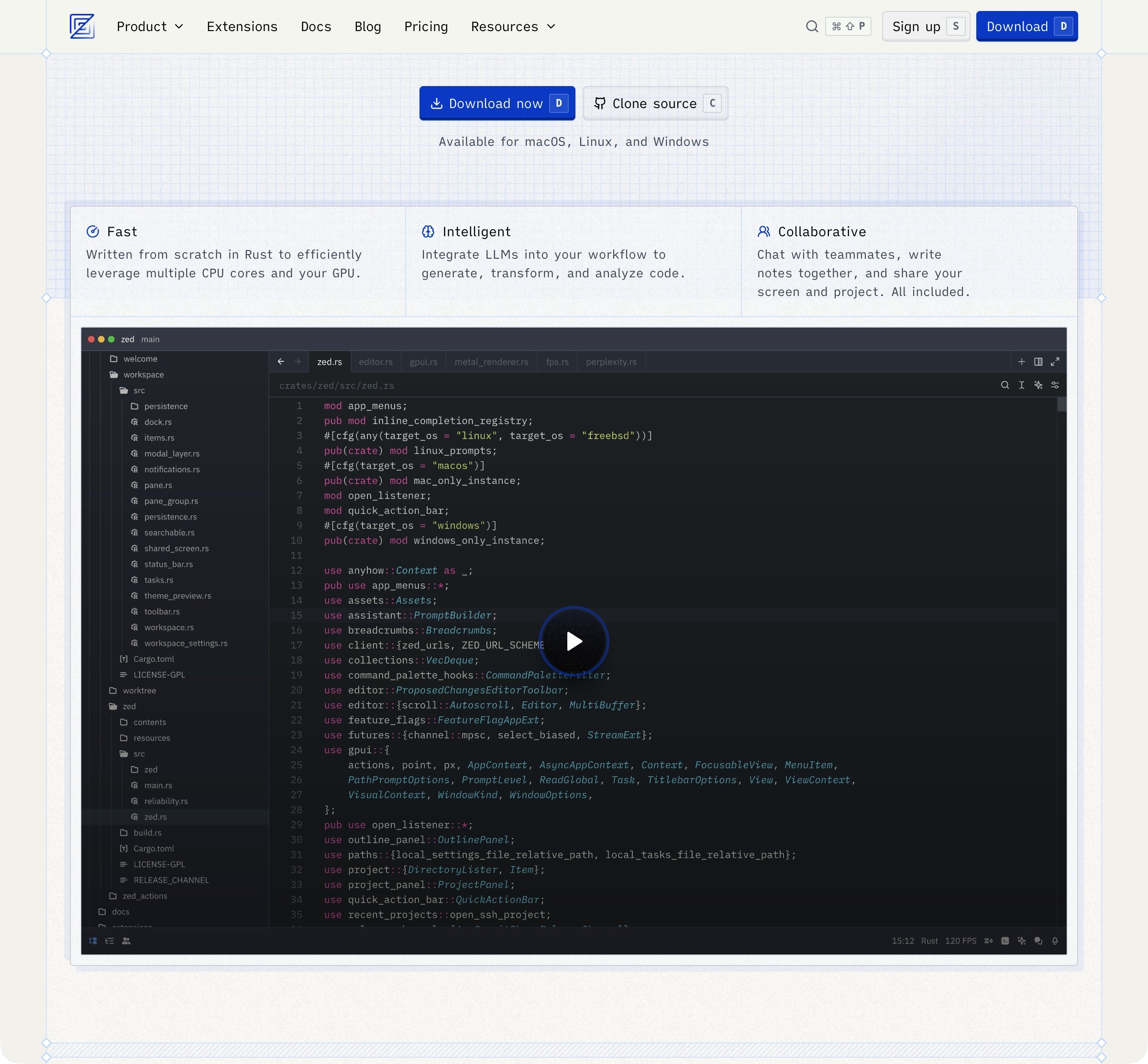
Then I found Zed, and everything clicked.
Zed is built from scratch in Rust. Not "fast for an Electron app." Actually fast. This is why I consider it the best AI code editor for terminal-first workflows. In published benchmarks, it opened a 100,000-line Java monorepo in 0.8 seconds, compared to 4.5 seconds for Cursor and 6 seconds for VS Code. Cold start is under 0.2 seconds. Memory usage runs 200 to 400 MB on a moderate project, compared to 500 to 800 MB for Cursor and over a gigabyte for VS Code. I haven't run these benchmarks myself, but the speed difference is obvious the moment you open it.
It's open source (Apache license) with 76,200 GitHub stars and 7,100 forks. The development velocity is remarkable: in 2025 alone, the team shipped 182 stable releases, 261 preview releases, and merged 10,300 pull requests. If you use it daily, you'll see updates almost every day. It's almost too active, but I'd rather have that than a stagnant project.
The pricing is simple. The Personal plan is free forever. That includes the full editor and 2,000 free AI edit-predictions per month. A Pro plan ($10 per month) unlocks unlimited predictions. I don't use any of the AI features. I use Zed purely as a fast, free AI code editor while Claude Code runs in the terminal.
What Zed Gets Right
The inbuilt terminal works properly. No scrolling bugs, no freezing, no memory bloat. I can run Claude Code sessions for hours without the editor struggling. I can open multiple codebases simultaneously without noticeable system overhead.
It's highly customizable and themeable. I use the Ayu Dark theme, which has a bright, electric feel that makes the whole experience feel alive. The UI is minimal and focused on code rather than menu clutter. File browsing and project navigation are fast enough that switching between files feels instantaneous. Developers describe it as feeling "snappy and alive" compared to the "memory hog" that Electron editors can be.
In August 2025, Zed announced the Agent Client Protocol (ACP), an open standard that lets external AI agents plug directly into the editor. With ACP, you can run Claude Code inside Zed alongside other agents like Gemini CLI or OpenAI Codex. I haven't personally used ACP yet since I prefer the pure terminal workflow, but it's a strong signal that Zed is building for the terminal-AI future rather than trying to replace it. Claude Code can also connect to external tools through MCP servers, which work independently of your editor choice.
Something New Is Coming...
A weekly breakdown of what's working across SaaS, ecommerce, and online marketing. The kind of stuff I'd tell a friend. Not launched yet, but you can grab a spot. Totally free!
The One Trade-Off: No Git Tree
When I first switched to Zed, the lack of a visual git tree bothered me. I was used to seeing all my commits, branches, and changes in a sidebar. Losing that felt disorienting.
But this turned out to matter far less than I expected. Here's why.
How AI Changed My Git Workflow (And Why You Don't Need a Git Tree)
When I used VS Code, I manually wrote every commit message, managed branches through the GUI, and relied on the visual git tree to understand what was happening in my codebase. I had complete manual control and I thought I needed it.
Working with Claude Code changed that entirely. Claude Code works directly with git. It can stage changes, write commit messages, create branches, and open pull requests. You can literally type "commit my changes with a descriptive message" and Claude handles it.
The key is configuring your CLAUDE.md file to not give Claude explicit control over git, so it asks for verification before running git commands. Beyond that, here's what you actually need to know: how to commit, how to push, when to merge, and when to raise PRs. That's it. Everything else, Claude figures out and guides you through.
I've come to realize I don't need the git tree because I'm aware of the codebase state through my conversations with Claude. It creates clean, well-structured commits and PRs without me touching anything. GitHub is still an incredible tool, but the visual git management I thought was essential turned out to be a habit, not a necessity.
The 2025 StackOverflow survey found that 49% of developers use Bash/Shell regularly, and AI-friendly workflows heavily favor the CLI. When your AI agent can handle git operations through the terminal, the visual git tree becomes a nice-to-have rather than a must-have. Once you get past needing that visibility, not having it makes no difference.
My Complete Setup: Zed + Claude Code + tmux
Here's what my daily workflow actually looks like.
Zed handles file browsing, code review, and occasional manual edits. It's the viewing layer. I keep it open to monitor the codebase structure, spot stray files, and read code with syntax highlighting.
Claude Code runs in the terminal as my primary coding interface. It reads files, writes code, runs tests, manages git, and orchestrates multi-file changes. This is where the actual development happens.
tmux (full cheat sheet here) manages terminal sessions. This was the final piece that completed the workflow. Without tmux, if you close the terminal or the application crashes, sub-processes sometimes don't close properly. Zed's terminal container isn't as robust as VS Code's for process management.
tmux solves this completely. You start a named session (tmux new -s myproject), launch Claude inside it, and the session persists even if you close Zed. You can come back to the same Claude session days later and pick up exactly where you left off. You can run different sessions for different coding projects and switch between them instantly.
This matters even more now with Claude Code's agent teams feature, where multiple Claude instances work in parallel. The official documentation specifically says "you'll want a terminal multiplexer so each teammate gets its own visible pane." It also warns that VS Code's integrated terminal does not support the split-pane mode needed for agent teams. You need tmux or iTerm2.
I pair this whole setup with Wispr Flow for voice dictation, which lets me speak my prompts to Claude Code instead of typing them. AI dictation paired with a terminal AI agent and a lightweight editor is genuinely a different way of working. You spend less time typing and more time thinking about what to build.
AI Code Editor Comparison: What I Actually Tested
Here's a quick comparison based on my personal experience with all four AI code editors. These aren't theoretical benchmarks. This is what I actually found using each editor daily with Claude Code.
| Factor | Cursor | VS Code | Nova | Zed |
|---|---|---|---|---|
| Performance | Slow (Electron, 500-800 MB) | Slow (Electron, 1.2 GB+) | Fast (native macOS) | Fastest (Rust, 200-400 MB) |
| Stability | Good | Crashes under heavy terminal use | Good | Excellent, never crashes |
| AI Features | Built-in ($20/mo) | Extensions | None | Optional (free tier available) |
| Git Integration | Full visual tree | Full visual tree | Full visual tree | Basic (improving via ACP) |
| Keyboard Shortcuts | Conflicts with AI overrides | Clean, standard | Clean | Clean, customizable |
| Terminal Experience | Scrolling bugs (historically) | Scrolling bugs, freezing | Good | Excellent |
| Price | $20/mo | Free | $99 + $49/yr | Free |
| Best For | AI-in-editor workflow | General development | Mac-native fans | Terminal AI + lightweight editing |
Conclusion
The progression from Cursor to VS Code to Nova to Zed wasn't random. Each switch was driven by the same realization: AI coding agents have shifted the center of gravity from the editor to the terminal. When your AI agent handles code generation, refactoring, testing, and git operations, you need less from your AI code editor, not more.
Here's what I've learned:
- Strip away, don't add. The best AI code editor is the lightest one that lets you see your files and read your code. Everything else happens in the terminal.
- Electron is the bottleneck. Running resource-heavy AI agents inside resource-heavy Electron editors creates avoidable performance problems. A Rust-based editor eliminates this entirely.
- The git tree is a habit, not a necessity. When your AI agent manages commits and PRs with verification, visual git management becomes optional.
- tmux completes the workflow. Session persistence, multi-agent support, and process isolation make tmux essential for serious terminal AI work.
About 7% of developers use Zed today. By late 2025, 4% of all GitHub commits were already authored by Claude Code agents. These numbers are going in the same direction. Terminal-based AI is growing, and the AI code editors that complement it (rather than compete with it) are the ones worth learning.
Zed is free, open source, and takes about 0.2 seconds to start. If you're using terminal AI agents, it's worth trying.