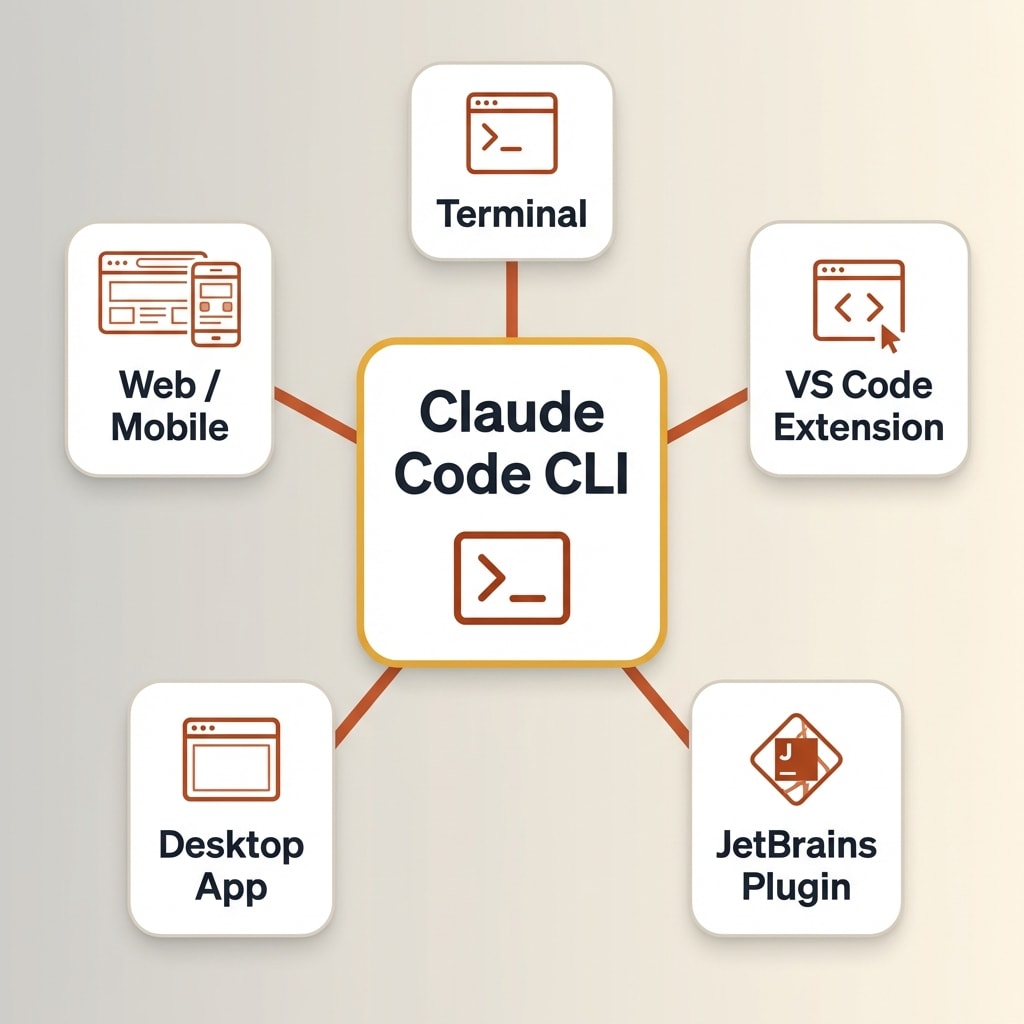
Claude Code is an AI coding agent from Anthropic that runs in the terminal, making the choice of IDE less important than traditional development. It works as a standalone CLI tool, a VS Code extension, a JetBrains plugin, or through the Claude Desktop app. Because the agent handles file editing, code generation, testing, and git operations from the command line, the editor becomes a viewer for browsing files and reviewing changes rather than the primary development interface. Any editor that supports a terminal works with Claude Code.
Every "which IDE should I use with Claude Code?" question misses the point. The IDE is no longer the center of your workflow.
As soon as Claude Code got released, it didn't take long for me to switch over from Cursor. I've always found the Cursor versus Replit versus Loveable versus all these other AI wrappers a bit of a distraction. At the end of the day, these apps don't own the model. Why should we think that a wrapper is going to produce a better output than the model itself? Claude Code is the model, running directly in your terminal. No middleman.
I'm a big believer in the terminal. Anyone who gets comfortable with terminal-based development can completely change how they build software. All those pretty interfaces you see online are just wrappers for the terminal. Claude Code is the ghost in the machine. It is completely glued into your filesystem, your shell, your git history. This is as pure an experience of using a computer as you'll ever get, and it's here to stay.
This article covers how Claude Code works across every surface (terminal, VS Code, JetBrains, Desktop app, web), what each setup looks like in practice, and why your CLAUDE.md file matters more than your editor settings.
How Claude Code Changes the Role of the Editor
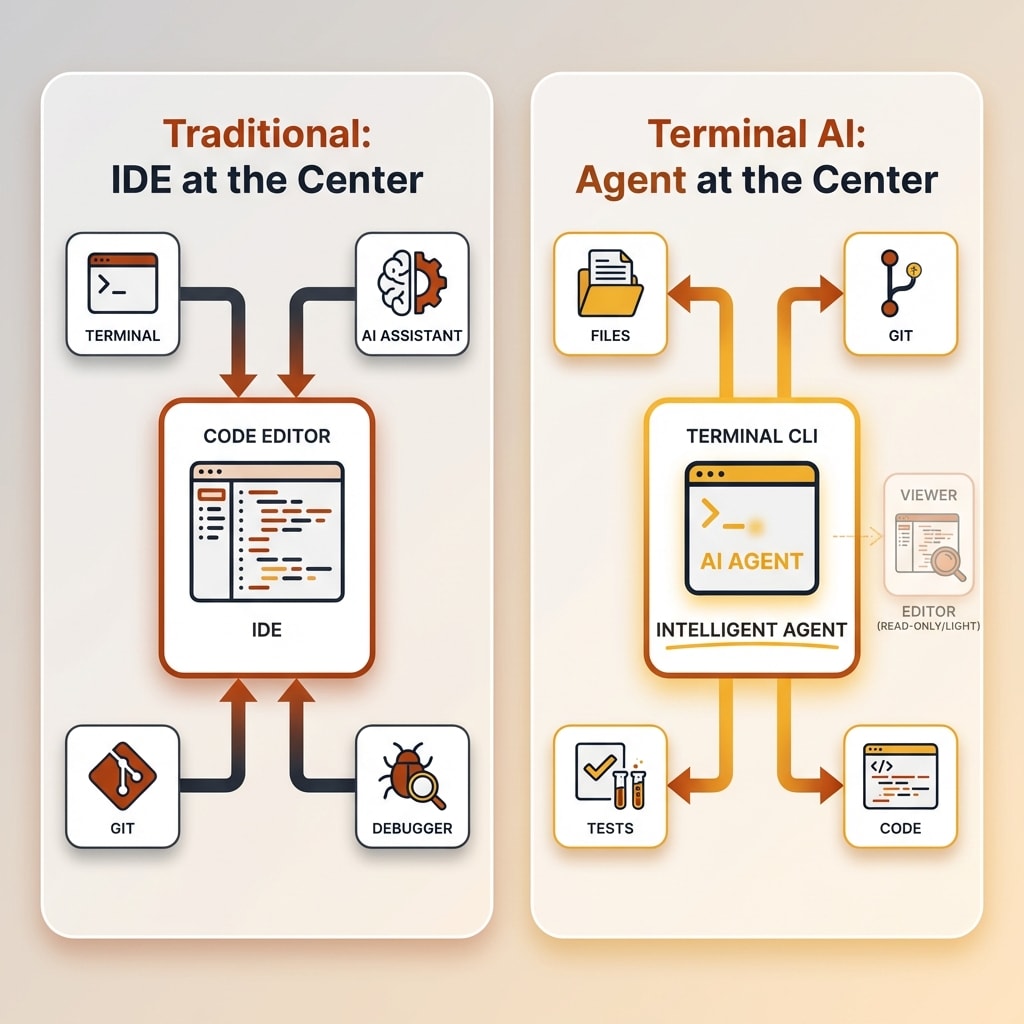
The traditional development model puts the IDE at the center of everything. Editing, debugging, AI assistance, version control, terminal access. Your editor is your operating system for code. You pick it carefully, customize it deeply, and build your entire workflow around it.
Terminal-based AI agents flip this model. When Claude Code runs in your terminal, it reads files, writes code, runs tests, handles git, and orchestrates multi-file changes across your entire codebase. The primary loop becomes: you ask, Claude plans, it executes tool calls (read, search, edit, run), shows you the diff, asks permission, and iterates. The agent drives. You review.
Your editor becomes a viewer. It has three remaining jobs: browsing the file tree so you can monitor codebase structure, reading code with syntax highlighting, and occasionally making small manual edits. That's it.
Steve Sewell, CEO of Builder.io, described this shift clearly. His workflow flipped from "Claude as a sidebar" to "Claude first." He now "only peeks at code when reviewing changes." That's the IDE-as-viewer thesis stated by someone running it at production scale.
This changes how you evaluate editors entirely. The question stops being "which Claude Code IDE has the best AI features?" and becomes "which editor is the fastest, lightest viewer for my files?" I wrote a full best AI code editor comparison covering how I tested four different editors with this exact mindset.
Every Way to Run Claude Code
Claude Code has five surfaces. They are not equal. The CLI is the foundation. Everything else layers on top of it.
Terminal CLI (The Foundation)
Install with one command:
npm install -g @anthropic-ai/claude-code
Run claude in any project directory. That's the full setup.
The terminal CLI is the complete, full-featured version of Claude Code. It handles file operations, shell commands, code generation, test execution, git management, and multi-file refactoring. Advanced features like MCP server configuration, bash shortcuts (! prefix), tab completion, and plan mode all live here.
It works with any editor, any terminal emulator, and any operating system. You can pair it with VS Code, Zed, Sublime Text, Vim, Emacs, or nothing at all. The CLI does not care what editor is open. It interacts with your filesystem and terminal directly.
This is the version I use most. If you only learn one way to run Claude Code, make it this one.
VS Code Extension
The VS Code extension provides a graphical panel inside the editor. You get inline diffs, file @-mentions, conversation history across tabs, and checkpoint/rewind to roll back changes. It has 5,424,455 installs on the Visual Studio Marketplace as of March 2026. It also works inside Cursor, since Cursor is a VS Code fork.
The extension is convenient. But it runs the CLI underneath. Some features are extension-only (visual diffs, checkpoints), and some are CLI-only (MCP server configuration, bash shortcuts, tab completion, full command/skill access). Anthropic's own docs recommend switching to the integrated terminal for advanced features.
For developers who live in VS Code, the extension is the easiest on-ramp. You get Claude in a panel on the left and your code on the right. But you're not getting a different tool. You're getting a GUI wrapper around the same CLI.
JetBrains Plugin
The JetBrains plugin supports IntelliJ IDEA, PyCharm, WebStorm, GoLand, Android Studio, and PhpStorm. It provides IDE diff viewing and automatic selection/tab context sharing. You activate it by running claude in the IDE's integrated terminal or connecting via the /ide command.
It has 1,974,869 downloads on the JetBrains Marketplace. Like the VS Code extension, it still runs the CLI underneath. Laravel developers have described the workflow as "Claude Code in the terminal paired with visual inspection in PhpStorm," calling it a great combo.
If JetBrains is your home, the plugin preserves your existing workflow and adds Claude on top. You do not need to switch editors.
Claude Desktop App
The Claude Desktop app is a standalone application. No VS Code, no terminal windows, no CLI installation needed. You open it, start a conversation, and Claude writes code.
It supports multiple sessions in parallel, a live preview pane for web projects, and cloud agents that run in Anthropic-managed VMs with cloned repositories. There's a plugin marketplace for adding MCP servers and skills. This is the closest thing to "Claude Code IS the IDE."
One practical tip: the Claude Desktop app is the easiest way to set up global MCPs. When you configure MCP servers globally through the desktop app, they carry across to wherever you authenticate your Claude Code login. Setting up MCPs via the CLI sometimes ends up writing the config to your local repository, which doesn't carry across to other projects. The desktop app handles global configuration more reliably. That said, there are times when local MCP setup makes sense. If the MCP server isn't a public URL, or if it's something you need to run locally, configuring it within the specific repository you're working with is the right call.
For quick prototyping or developers who don't want to touch a terminal, the desktop app is the most approachable entry point.
Web and Mobile
You can run Claude Code at claude.ai/code with no local setup at all. Start a coding session in your browser, queue up long-running tasks, and check back when they finish. Sessions run in parallel.
Remote Control lets you steer a local CLI session from Claude.ai or the mobile app using a gRPC-based connection. Your code stays on your machine. The cloud interface becomes a remote control panel. This is useful for monitoring long tasks from your phone or resuming sessions across devices.
Want to Hear From Me Weekly?
I'm putting together a weekly email with the real stuff. What's working, what's not, and the tools I'm actually using to grow. Not live yet, but you can grab a spot. Totally free!
Which Setup Actually Works Best
This is not a "pick one" situation. Different setups fit different contexts.
Solo developer, deep work. Terminal CLI plus a lightweight editor like Zed or Sublime Text. Maximum speed, minimum overhead. The editor is just a file viewer. Claude does the rest. Pair it with a terminal multiplexer like tmux and you get session persistence, multi-agent split panes, and something most people miss: external sessions that Claude Code can access. Claude can run bash commands within its own process, but if you shut down Claude, those processes die with it. With tmux, you can have Claude dial into a running session that lives outside its own infrastructure. Start a dev server in a tmux pane, and Claude can monitor it, read the logs, and debug issues without you copying and pasting between windows. The session survives regardless of what happens to Claude.
Team environment, code review focus. The VS Code extension makes sense here. Inline diffs, visual collaboration, and a familiar interface that the whole team already knows. The extension's checkpoint feature lets you rewind changes, which is valuable during code review.
Quick prototyping, no local setup. Desktop app or web. Start building without installing anything. Cloud agents handle execution. Good for testing ideas or working from a machine that isn't your main development environment.
JetBrains users with existing workflows. The plugin preserves everything you have. Your keybindings, your project settings, your debugger configuration. Claude layers on top without disrupting it.
On the move. Remote Control lets you drive a local Claude session from your phone or browser. Pair this with Wispr Flow for speaking your prompts and you can dictate to Claude from anywhere.
The honest answer: the terminal CLI is the most powerful version. Everything else adds convenience at the cost of some features. If you're comfortable in a terminal, start there. If not, the VS Code extension is the most popular on-ramp, and you can always drop into the terminal later.
Why CLAUDE.md Is Your Real IDE Configuration
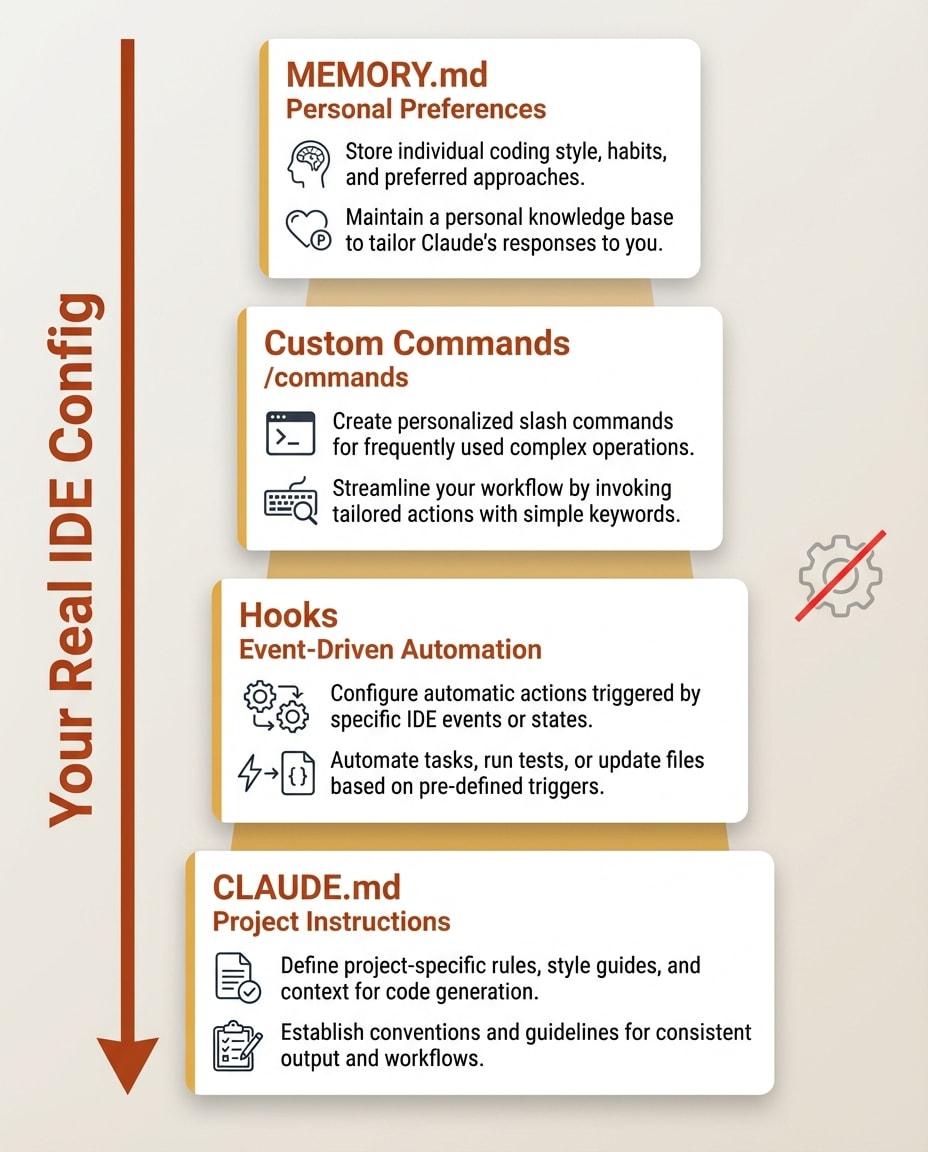
Here's the part most "Claude Code IDE" discussions miss entirely. The files that shape Claude Code's behavior matter more than any editor setting.
CLAUDE.md: Your Project Instruction File
CLAUDE.md is a markdown file that Claude Code automatically loads from your working directory at the start of every session. It contains your project overview, coding standards, key commands, and workflow rules. Think of it as a persistent system prompt that travels with your repository.
Every project I work on has a CLAUDE.md. It tells Claude things like: "Never use em dashes. Use Prettier for formatting. Run TypeScript checks before committing. Here are the affiliate link conventions. Here's how the file structure works." Claude follows these instructions across every session without me repeating them.
You can nest CLAUDE.md files in subdirectories for different rules in different parts of a monorepo. The system is hierarchical. A CLAUDE.md in /frontend can override or extend the one in the project root.
Enterprise teams benefit the most here. A checked-in CLAUDE.md plus managed permission rules plus sandboxing equals consistent agent behavior enforced by repository policy, not personal editor configuration. Every developer on the team gets the same Claude behavior regardless of whether they use VS Code, JetBrains, or a plain terminal.
Hooks: Event-Driven Automation
Hooks let you run scripts at specific points in Claude's workflow. Auto-format files after edits with Prettier. Run TypeScript type-checking when Claude modifies a .ts file. Lint before commits. Run tests after task completion.
These are event-driven. They fire on tool calls, task completion, teammate creation, and other lifecycle events. No editor plugin provides this level of automation tied directly to AI agent actions.
Custom Slash Commands
You can create custom commands as .md files in .claude/commands/. A file called test.md becomes the /test command. Write instructions like "Run the test suite for the current project, report failures, and suggest fixes" and Claude executes that workflow every time you type /test.
I have commands for /review (review recent changes against project standards), /audit-links (check internal link integrity), and /deploy (run the deployment checklist). These are project-specific workflows that no editor extension can replicate.
Memory System
Type # followed by a preference, and Claude saves it to MEMORY.md. The first 200 lines of MEMORY.md load automatically at session start. Preferences accumulate over time. "Prefers functional components." "Always use absolute imports." "Test with Vitest, not Jest."
This is your personal IDE configuration, except it's portable, version-controllable, and independent of any editor.
The Permission System and How to Handle It
Claude Code's permission model is a workflow decision, not an IDE decision. It works the same regardless of which editor you use.
Default mode. Claude asks permission for every file edit and every shell command. This is the safest starting point. You see exactly what Claude wants to do before it does it.
Plan mode. Claude proposes a complete plan. You review and approve before any execution happens. Good for complex, multi-step changes where you want to see the full picture first.
Auto-accept edits (acceptEdits). File changes happen freely. Shell commands still require approval. This is a good middle ground. You trust Claude to edit code but want to approve anything that runs in the terminal.
Bypass permissions (bypassPermissions). Full autonomy. Claude reads, writes, and executes without asking. Anthropic explicitly warns this should only be used in isolated, sandboxed environments. The documentation is clear: this mode is for contained environments, not your production machine.
Practical recommendation. Start with default mode. Move to auto-accept edits once you're comfortable with how Claude handles your codebase. Use permission allowlists to pre-approve known-safe operations (like running your test suite or formatting code) to reduce repetitive approvals without opening everything up.
Security is real here, not theoretical. Check Point researchers found vulnerabilities in Claude Code related to hooks and configuration behavior, leading to CVEs and patches. The permission system is a genuine security boundary. Treat it that way, especially when working with untrusted repositories.
Something New Is Coming...
A weekly breakdown of what's working across SaaS, ecommerce, and online marketing. The kind of stuff I'd tell a friend. Not launched yet, but you can grab a spot. Totally free!
What Makes Claude Code Different From IDE-Based AI
Cursor, GitHub Copilot, and Windsurf all follow the same architecture: AI lives inside the editor. The editor is the platform. You interact with AI through the editor's interface, and the AI's capabilities are bounded by what the editor exposes.
Claude Code inverts this. AI lives in the terminal. The editor is optional. Claude Code is a tool-using software agent that can plan, search, edit, run, and integrate. It operates on your filesystem directly. The editor is just one of many surfaces for viewing what the agent did.
Practical differences. Claude Code handles very large files that can crash editor-based AI tools. One practitioner comparison cited an 18,000-line React component that Claude Code handled while other agents struggled. Claude Code navigates codebases independently, reading files and searching code without you pointing it to the right location. It queues multiple prompts and works through them sequentially.
The economics. Claude Pro costs $17 per month (annual) or $20 monthly. That includes Claude Code. Cursor Pro costs $20 per month and you still need a model subscription on top. GitHub Copilot runs $10 per month for individuals or $19 per user for business. Windsurf is free for individuals with paid team plans. The pricing landscape shifts constantly, but Claude Code's bundling inside the existing Claude subscription is a meaningful differentiator.
This is not a "which is better" argument. Editor-centric AI and terminal-centric AI are different philosophies. If you want AI tightly integrated into your visual editing experience, Cursor or Copilot makes sense. If you want an autonomous agent that operates independently of your editor, Claude Code is the stronger choice. All of these tools are growing fast. The question is not which one wins, but which architecture fits how you actually work.
Frequently Asked Questions
Do you need an IDE to use Claude Code?
No. Claude Code is a terminal-based CLI tool. You can install it with npm, run it in any terminal, and it handles file reading, editing, code generation, testing, and git operations without an IDE. The VS Code extension and JetBrains plugin are optional convenience layers. Any terminal on any operating system works.
The CLI can read your codebase, write and edit files, execute shell commands, run tests, and manage git. The entire primary workflow happens in the terminal. An IDE adds visual file browsing and syntax-highlighted code review, but neither is required for Claude Code to function.
What is the best IDE for Claude Code?
Most developers use VS Code, and Anthropic officially recommends it. The VS Code extension has over 5.4 million installs. But because Claude Code runs through the terminal, the "best" IDE is whichever editor gives you the fastest file browsing, syntax highlighting, and debugging for your stack.
If you value raw speed, a lightweight editor like Zed or Sublime Text paired with the terminal CLI is the fastest setup. If you need deep language tooling, JetBrains IDEs with the Claude plugin give you the best of both worlds. The agent works the same regardless of which editor is open.
Can Claude Code replace my IDE completely?
For many tasks, yes. Claude Code handles multi-file edits, test execution, git operations, and browser automation from the terminal. I use it for the majority of my development work without touching an editor.
But IDEs remain superior for interactive debugging, go-to-definition, find-all-references, and complex code navigation. Claude Code's docs list code intelligence features (LSP plugins, type errors, reference finding) as additional capabilities, not built-in ones. Most developers keep a lightweight editor open for reviewing changes while Claude does the heavy lifting.
How much does Claude Code cost?
Claude Code ships inside Claude's Free, Pro, and Max plans. Pro costs $17 per month when billed annually or $20 monthly. Max starts at $100 per month with higher usage limits. The Free plan includes limited Claude Code access.
You can also use Claude Code with API keys from Anthropic directly, or through alternate providers like AWS Bedrock and Google Vertex AI. Enterprise and Teams plans offer centralized billing and admin controls. The CLI supports environment variable configuration for authentication across different provider setups.
Is Claude Code better than Cursor?
They solve different problems. Cursor is an editor-centric AI tool where AI lives inside the IDE. Claude Code is a terminal-centric agent where the editor is optional.
Claude Code handles very large files better, is more configurable through repo-level files like CLAUDE.md, and works with any editor. Cursor has stronger visual integration, inline editing features, and a more polished GUI experience.
The choice depends on your bottleneck. If you want an AI that operates autonomously and you're comfortable reviewing diffs after the fact, Claude Code fits. If you want AI tightly woven into your visual editing flow with real-time inline suggestions, Cursor fits. Many developers use both. Claude Code for heavy multi-file tasks, Cursor or VS Code for manual editing sessions.
Conclusion
The Claude Code IDE question has a simple answer: it barely matters.
Here's what I've learned from using Claude Code daily:
- Claude Code runs everywhere. Terminal, VS Code, JetBrains, Desktop app, web, and mobile. You are not locked into any editor.
- The terminal CLI is the most powerful surface. Every other integration is a convenience layer on top of it. Start here if you can.
- CLAUDE.md is your real configuration. Project instructions, hooks, custom commands, and memory files shape Claude's behavior far more than any editor setting.
- The editor becomes a viewer. When AI drives from the terminal, your editor's job is file browsing, syntax highlighting, and reviewing diffs. Pick the fastest, lightest option for your stack.
- Start with whatever editor you already use. You can optimize later. The agent doesn't care.
Terminal-first AI development is still early, but the trajectory is clear. The developers spending hours choosing between AI-enhanced editors are optimizing the wrong variable. The agent is the workflow. The editor is just the window.