Dictation software converts spoken words into text using speech recognition technology. Every major platform now includes free built-in dictation: Apple Dictation on Mac and iOS, Voice Access on Windows, Voice Typing in Google Docs, and Gboard on Android. These tools handle basic transcription but struggle with accuracy, formatting, and natural speech patterns. AI-powered dictation software, built on models like OpenAI's Whisper, adds intelligent post-processing that removes filler words, inserts punctuation, and produces polished text. Built-in tools work for quick notes, while AI dictation is better for sustained writing.
Most people still type everything. Emails, documents, Slack messages, notes, code comments. And most people have no idea that dictation software has gotten dramatically better in the last two years.
Built-in dictation used to be a punchline. You would talk, it would butcher half your words, and you would spend more time fixing errors than you saved by speaking. That era is over.
AI models, particularly OpenAI's Whisper (released in 2022), brought speech recognition accuracy from "sometimes okay" to "consistently reliable." A new generation of voice to text apps built on top of those models doesn't just transcribe. It cleans up your speech into polished writing.
This article covers what's available on every platform for free, where built-in tools still fall short, and how the new wave of AI dictation software works differently. Whether you just want to voice-type a quick note or replace your keyboard for long-form writing, you'll know exactly what to use.
What Dictation Software Actually Does
At its simplest, dictation software listens to your voice and converts speech to text. But in 2026, there are two distinct categories worth understanding.
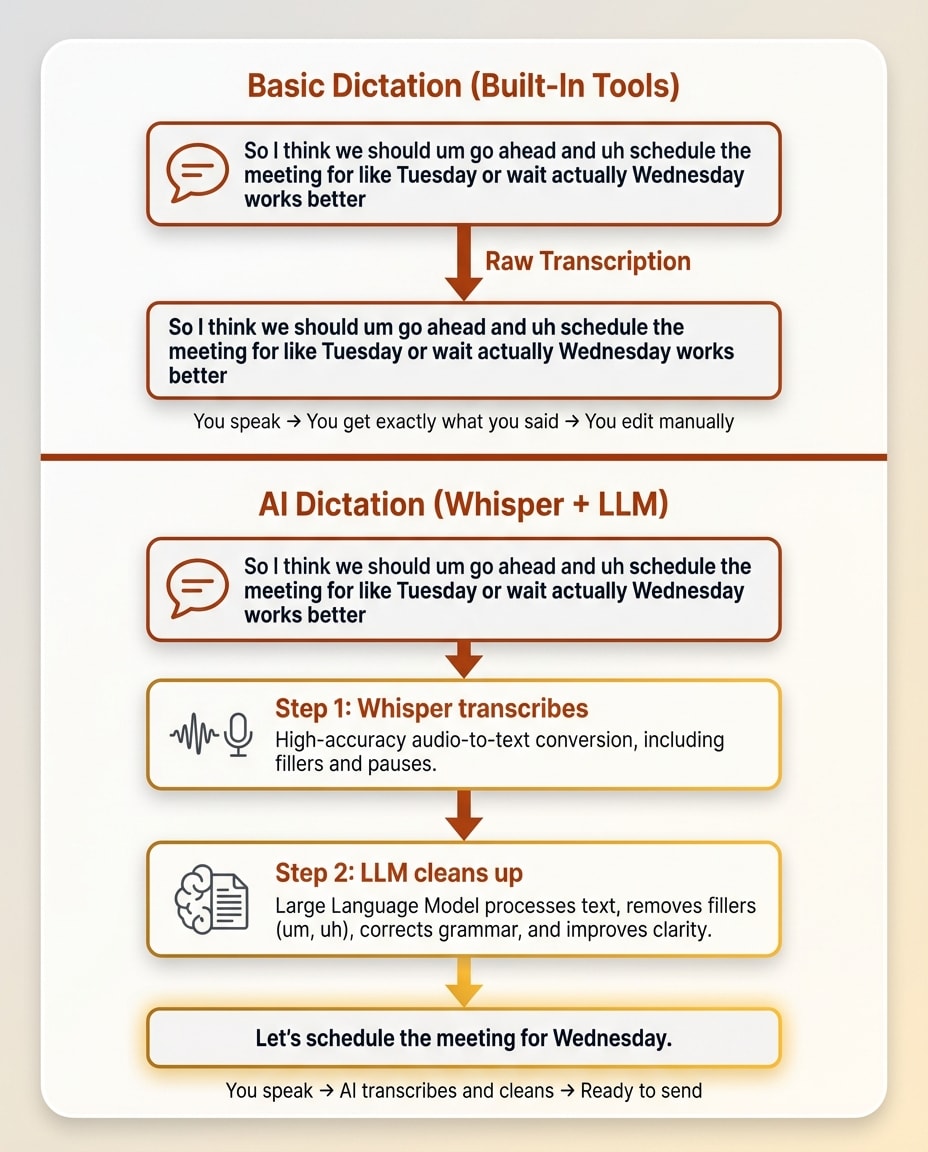
Basic dictation is raw transcription. You talk, it types exactly what you say. You speak punctuation commands out loud ("period," "new line," "new paragraph"). This is what every built-in platform tool does. It works, but it requires you to speak like a robot.
AI dictation is intelligent transcription with post-processing. You talk naturally, and the AI cleans up filler words, adds proper punctuation, and formats the text to match the context. You speak like a human and get polished writing out the other end.
This distinction matters because it explains why so many people tried dictation years ago and gave up. They were using basic dictation tools that required unnatural speech patterns. AI dictation removes that friction entirely.
One important clarification: dictation is different from transcription services (which process pre-recorded audio files) and AI meeting assistants (which capture conversations). This article focuses on real-time voice to text for your own writing.
Free Dictation Software Built Into Every Platform
Before you spend anything, it's worth knowing what you already have. Every major platform ships with free dictation software. Here's how to set it up on each one.
Mac and iOS (Apple Dictation)
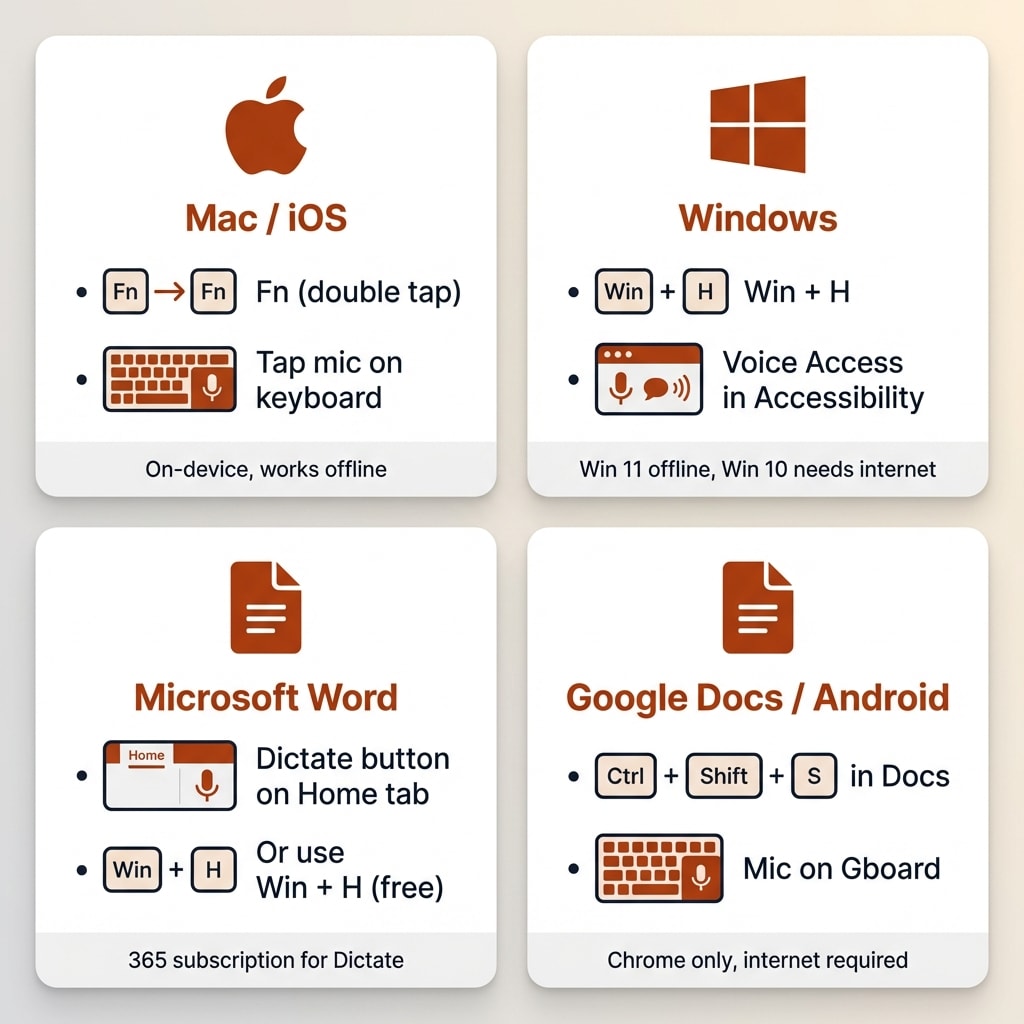
On Mac, go to System Settings, then Keyboard, then Dictation. The default shortcut is pressing the Fn key twice (you can configure this). Apple's on-device neural recognition works without internet, and there's no hard word limit. It stops after about 30 seconds of silence. If smart punctuation is enabled, it auto-punctuates basic sentences.
On iPhone and iPad, tap the microphone icon on the keyboard. Since iOS 15 (2021), Apple uses fully on-device processing for supported languages. There's no fixed time limit anymore, though it stops listening after roughly 30 seconds of silence.
Apple Dictation handles short bursts well. Quick text messages, search queries, short notes. It recognizes commands like "new line," "new paragraph," and "delete last sentence." For casual voice to text that's free and requires zero setup, it's solid.
The limitations show up fast with longer dictation. A 2025 Zapier test found built-in tools like Apple Dictation produced error rates of 10-30% in real-world tasks. You say "um" and it types "um." You pause mid-thought and it captures whatever fragments came out. Every sentence needs manual cleanup.
Windows (Voice Access and Dictation)
Windows gives you two options, and they serve different purposes.
Voice Typing works on both Windows 10 and 11. Press Win+H in any text field. It uses Microsoft's cloud speech service (internet required) and supports punctuation commands like "period," "comma," and "new paragraph." This is the quickest way to start dictating on a PC.
Voice Access is the more powerful option, but it's Windows 11 only. Go to Settings, then Accessibility, then Speech. It downloads an on-device language model for fully offline dictation and can control your entire OS by voice. If you need dictation software for PC that works without internet, this is it.
Both options support editing commands like "delete that" and "select all." The biggest complaint from Windows users is the timeout. If you pause speaking for about 10 seconds, Voice Typing stops listening. That means you need to speak in continuous bursts, which doesn't match how most people actually think.
Dictation in Microsoft Word
If you specifically need dictation software for Word, Microsoft 365 subscribers get a Dictate button on the Home ribbon. You can also press Win+H for system-wide dictation that works in Word and every other app.
The Word Dictate feature supports formatting commands like "open quotes," "close quotes," and "new paragraph." It requires an internet connection and a Microsoft 365 subscription. Standalone Word without the subscription does not include cloud dictation.
For anyone searching for a free voice to text option in Word, Win+H is the answer. It doesn't require a subscription and works in any text field on Windows.
Google (Voice Typing in Docs and Gboard)
In Google Docs, go to Tools, then Voice Typing. The keyboard shortcut is Ctrl+Shift+S. It only works in the Chrome browser and requires an internet connection. Over 100 languages and dialects are supported, plus punctuation and formatting commands.
The catch: Voice Typing only works in Google Docs (and Slides speaker notes). Not in Gmail, not in other Google apps, not in other browsers.
Gboard is Google's keyboard for Android and iOS. Tap the microphone button on the top row of keys. It handles fast casual speech well and supports dozens of languages. On newer Pixel phones, assistant voice typing adds automatic punctuation.
Gboard is genuinely useful for quick mobile dictation. It's fast, it's free, and it works in any app with a text field. The downside is that it times out after a couple of minutes of silence and requires internet unless you've installed offline language packs on Android.
Want to Hear From Me Weekly?
I'm putting together a weekly email with the real stuff. What's working, what's not, and the tools I'm actually using to grow. Not live yet, but you can grab a spot. Totally free!
The Common Thread (Why Built-In Tools Fall Short)
Every built-in tool shares the same fundamental limitation: they transcribe literally. You say "um" and it types "um." You ramble mid-thought and it captures every fragment. You speak a run-on sentence and it keeps it as one long sentence.
There's no intelligent formatting. No context awareness. No tone matching. No filler word removal.
For a quick text message or short note, they work fine. For anything longer than a paragraph or two, you spend as much time editing as you saved by speaking. That's the ceiling for basic dictation.
This is where the landscape shifted.
How AI Changed Dictation Software
In September 2022, OpenAI released Whisper, an open-source speech recognition model trained on 680,000 hours of multilingual audio. Its word error rate on English was 3.96%, roughly comparable to a trained human transcriber. Later, GPT-4o Transcribe pushed accuracy even further, achieving a 2.46% word error rate.
Before Whisper, accurate speech recognition required expensive proprietary systems. Dragon NaturallySpeaking dominated for decades, with professional versions costing $699 or more. Whisper made near-perfect transcription free and accessible to any developer under an MIT license.
But the real innovation wasn't better transcription. It was what happens after transcription.
AI dictation tools now pipe raw speech through a language model that does intelligent post-processing in real time. The result:
- Filler words ("um," "uh," "like," "you know") get stripped out automatically
- Punctuation is added based on speech patterns and pauses
- Grammar gets fixed without changing your meaning
- Tone matches the context (formal email versus casual Slack message)
- Custom vocabulary learns your product names, jargon, and proper nouns
The gap between speaking and writing has collapsed. You can think out loud, speak naturally with pauses and corrections, and get polished text output. This is why dictation suddenly feels different if you haven't tried it in a few years. The technology underneath changed completely.
If you want a deeper look at how AI dictation works under the hood, including the Whisper architecture and post-processing pipeline, I wrote a more technical explainer on AI dictation.
How to Actually Start Using Dictation
Knowing what's available is one thing. Actually building a dictation habit is another. Here's the practical path I'd recommend.
Getting Started With Built-In Tools
Pick the built-in tool for your platform from the sections above. It's free and requires zero setup beyond enabling it in your settings.
Start with low-stakes tasks. Text messages, quick search queries, short notes to yourself. The goal is getting comfortable speaking to your device before you try anything ambitious.
Learn three to five basic voice commands for your platform:
- "Period," "comma," "question mark" for punctuation
- "New line" or "new paragraph" for formatting
- "Delete that" or "delete last word" for corrections
A few tips that make a real difference in accuracy. Use an external microphone if you can. Built-in laptop and phone mics pick up too much background noise. Speak at a consistent pace, slightly slower than normal conversation. Minimize background noise. Close windows, turn off fans, put your phone on silent.
Give it at least a week of daily use. The first few sessions feel clunky. By day five or six, you stop thinking about the mechanics and just start talking.
Moving to AI Dictation
Once you've outgrown built-in dictation, and you'll know because you're spending more time editing than speaking, it's time to consider an AI-powered tool.
What to look for: something that works across all your apps (not just one program), offers AI post-processing for cleanup, supports custom vocabulary, and has reasonable pricing.
The learning curve is real but short. The first few days feel awkward. You're self-conscious about talking to your computer. Most people report it "clicks" after three to five days. After a week, you stop reaching for the keyboard for first drafts.
I've been using Wispr Flow as my daily driver and wrote an in-depth review of how it fits into real workflows. It's the tool I'd recommend for anyone ready to move past built-in dictation. The combination of AI cleanup, custom vocabulary, and cross-app compatibility makes the difference between dictation as a novelty and dictation as a genuine workflow replacement.
The speed difference is significant. The average person types around 40 words per minute. Comfortable speaking speed is 120 to 150 words per minute. Even after accounting for pauses and corrections, effective dictation speed lands around 100 to 120 words per minute. That's a two to three times speed advantage for first drafts.
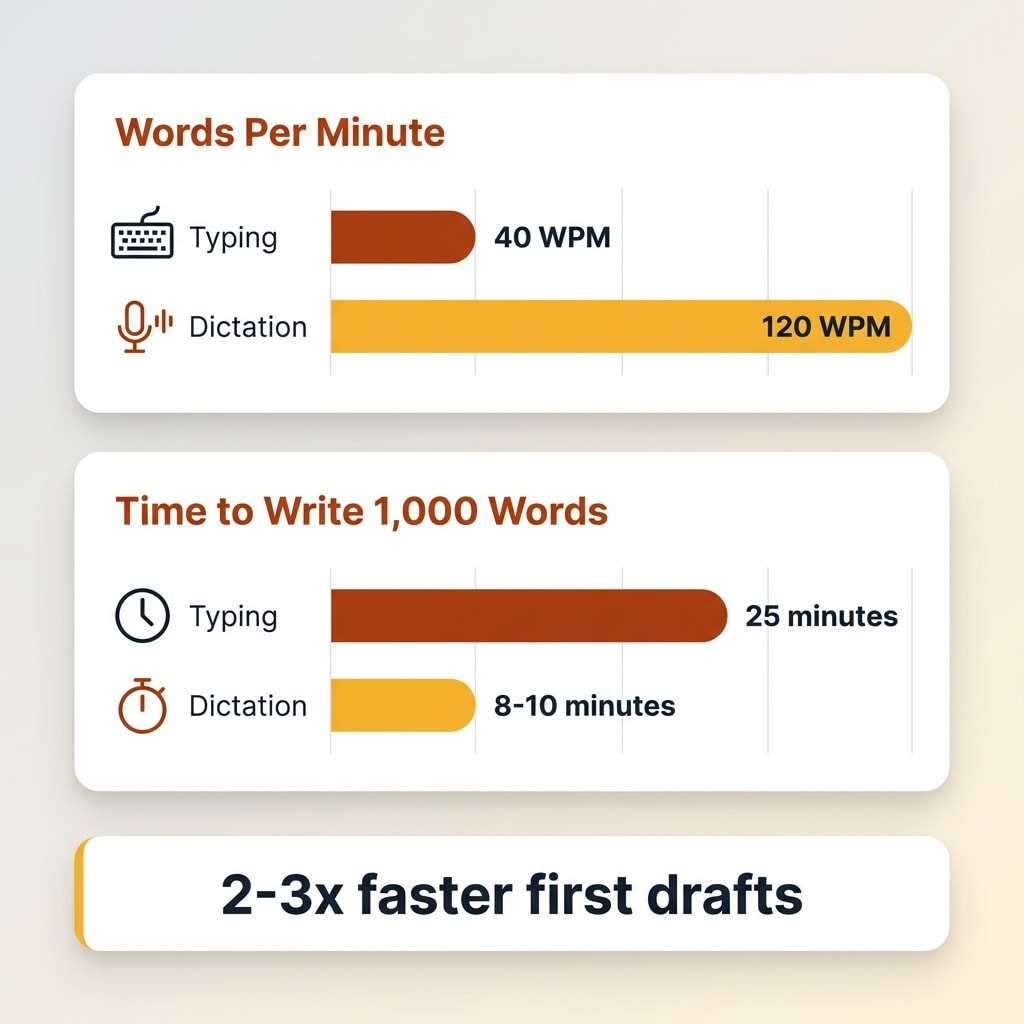
A 1,000-word document takes roughly 25 minutes to type at 40 WPM. The same document takes eight to 10 minutes to dictate. Over a year of daily writing, that adds up to hundreds of hours reclaimed.
Frequently Asked Questions
Something New Is Coming...
A weekly breakdown of what's working across SaaS, ecommerce, and online marketing. The kind of stuff I'd tell a friend. Not launched yet, but you can grab a spot. Totally free!
Is there completely free dictation software?
Yes. Apple Dictation, Windows Voice Access, Google Docs Voice Typing, and Gboard are all free and built into their respective platforms. They handle basic speech to text well. AI-powered dictation tools like Wispr Flow also offer free tiers with limited usage.
How accurate is modern dictation software?
Built-in tools typically achieve 70-90% accuracy in real-world usage. AI-powered dictation tools using models like OpenAI's Whisper report word error rates under 4%, with some achieving under 2.5%. Accuracy improves significantly with a good microphone and clear speech in a quiet environment.
Can I use dictation software in Microsoft Word?
Yes. Microsoft 365 subscribers can use the built-in Dictate feature from the Home tab, or press Win+H for system-wide Windows dictation. Third-party AI dictation tools also work in Word since they type into any active text field.
Is dictation faster than typing?
For most people, yes. The average person types around 40 words per minute. Comfortable speaking speed is 120 to 150 words per minute. Even accounting for corrections, dictation is typically two to three times faster than typing for first drafts.
Does dictation software work offline?
Some options do. Apple Dictation on Mac uses on-device processing and works without internet. Windows Voice Access runs offline with a downloaded language model. Most AI-powered dictation tools require an internet connection because they process audio through cloud-based models.
Start Talking
Dictation software is no longer the frustrating, error-prone tool it was five years ago. Every platform now offers decent free options for quick voice-to-text tasks. The real shift is AI-powered dictation that lets you speak naturally and produces clean, formatted text.
If you haven't tried dictation since the Dragon NaturallySpeaking era or since the early days of Siri, it's worth another look. Start with your platform's built-in tool. Get comfortable speaking to your device. If you find yourself editing more than speaking, that's when AI dictation tools earn their keep.
I've personally dictated over 500,000 words in the last year. It changed how I write, how I code, and how I communicate. The technology is finally where it needed to be all along.